
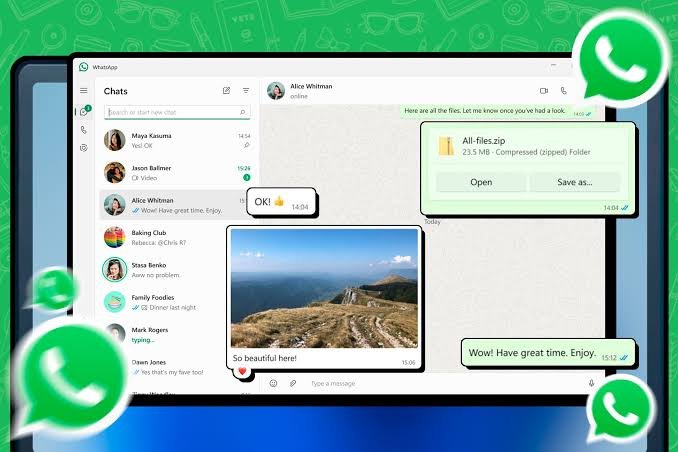
Web WhatsApp is a convenient way to use your WhatsApp account from a computer or laptop. Instead of checking your phone every time you receive a message, you can open WhatsApp in a web browser and communicate from a larger screen. It is useful for students, employees, business owners, freelancers, and anyone who spends a significant amount of time working on a computer.
With Web WhatsApp, users can send and receive messages, share photos and videos, exchange documents, view conversations, and manage chats from a desktop browser. The service works by linking your WhatsApp account on your phone with a browser session on your computer.
| Feature | Description |
|---|---|
| Platform | Web browser |
| Main Use | Messaging from a computer |
| Login Method | QR code or supported linking method |
| Phone Required | Yes, for initial account linking |
| Messages | Send and receive WhatsApp messages |
| Media | Photos, videos, and documents |
| Browser Support | Modern desktop browsers |
| Security | Linked-device controls and encryption |
What Is Web WhatsApp?
Web WhatsApp is the browser-based version of WhatsApp that allows users to access their WhatsApp conversations from a computer. Instead of downloading a separate desktop application, you can open the official WhatsApp Web website through a supported browser.
The service is designed to work alongside the WhatsApp application on your phone. After linking the computer to your account, you can continue conversations from your desktop without repeatedly switching between your phone and computer.
This makes communication much easier when you are typing long messages, handling work conversations, sending documents, or managing multiple chats.
How Does Web WhatsApp Work?
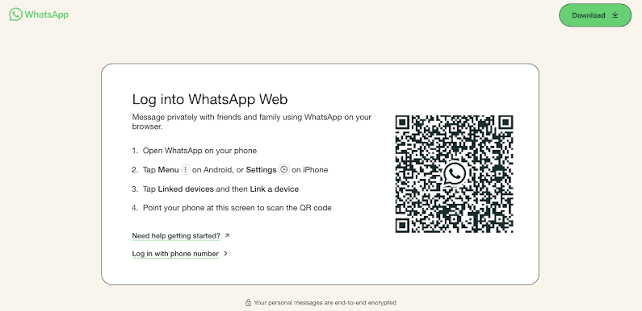
Web WhatsApp connects your browser to your WhatsApp account through the linked-device system. You normally begin by opening the official WhatsApp Web page on your computer. A QR code is displayed on the screen.
You then open WhatsApp on your smartphone and access the Linked Devices section. From there, you can choose the option to link a new device and scan the QR code displayed in your browser.
Once the connection is completed, your WhatsApp account becomes available in the browser. Your conversations can then be accessed from the computer according to WhatsApp’s current linked-device functionality.
The exact interface may change as WhatsApp releases updates, but the general linking process remains straightforward.
How to Use Web WhatsApp
Using Web WhatsApp does not require advanced technical knowledge. Follow these general steps.
Step 1: Open a Web Browser
Start a modern browser on your computer or laptop. Popular browsers include Chrome, Microsoft Edge, Firefox, Safari, and other supported browsers.
Step 2: Visit WhatsApp Web
Open the official WhatsApp Web website. You should see the WhatsApp Web interface and a QR code for linking your device.
Step 3: Open WhatsApp on Your Phone
Launch the WhatsApp application on your smartphone.
Step 4: Open Linked Devices
Go to the WhatsApp settings or menu and select Linked Devices. The location of this option can vary slightly between Android and iPhone.
Step 5: Link a Device
Choose Link a Device and authenticate if WhatsApp asks you to verify your identity.
Step 6: Scan the QR Code
Use your phone to scan the QR code displayed on the computer screen.
Step 7: Start Using WhatsApp
After the devices are successfully linked, your WhatsApp conversations will become available in the browser.
Web WhatsApp Login
Web WhatsApp does not normally work like a traditional website where you enter a username and password. Instead, WhatsApp uses a device-linking process.
The QR code provides a convenient way to connect your browser with your WhatsApp account. This means you should never share your WhatsApp QR code with strangers.
If someone obtains access to the linking process and successfully connects an unauthorized device, they may be able to access your account through that linked session. Therefore, always check your linked devices regularly.
How to Log Out of Web WhatsApp
Logging out is particularly important if you use WhatsApp on a shared, public, school, or office computer.
To log out from the browser, open the WhatsApp Web menu and select the logout option.
You can also manage linked sessions from the WhatsApp application on your phone. Open Linked Devices and review the computers and browsers connected to your account.
If you see a device that you do not recognize, remove it immediately.
This is one of the simplest ways to maintain control over your WhatsApp account.
Web WhatsApp for Android
Android users can connect their phones to Web WhatsApp using the Linked Devices feature.
Open WhatsApp on your Android phone and access the menu. Select Linked Devices, choose Link a Device, and scan the QR code displayed on the computer.
After successful authentication, the browser will connect to your WhatsApp account.
The process generally takes only a short time, provided that the phone and computer have suitable internet connections.
Web WhatsApp for iPhone
iPhone users can also access Web WhatsApp through the Linked Devices feature in the WhatsApp application.
Open WhatsApp, go to Settings, select Linked Devices, and choose the option to link a new device. The QR code shown in the browser can then be scanned using the iPhone.
Once the browser is linked, WhatsApp can be used from the computer without needing to type messages on the phone.
Web WhatsApp on a Laptop
Web WhatsApp is particularly useful on laptops because it provides a larger screen and physical keyboard.
If you regularly communicate with customers, colleagues, classmates, or friends, typing from a laptop can be considerably faster than using a smartphone keyboard.
You can also move between browser tabs while keeping WhatsApp available, which can make multitasking more convenient.
For example, a business owner might keep WhatsApp Web open while working with spreadsheets, emails, documents, or an online store.
Web WhatsApp on a Desktop Computer
Desktop computer users can access WhatsApp through a web browser in much the same way as laptop users.
The larger display can make it easier to manage long conversations and review documents or media shared through chats.
If you use WhatsApp frequently throughout the day, keeping a browser tab dedicated to WhatsApp can make communication more efficient.
Features Available on Web WhatsApp
Web WhatsApp provides many of the functions people commonly use on their phones.
Depending on the current version and account configuration, users can generally:
- Send and receive text messages
- Reply to conversations
- Send photos and videos
- Share documents
- Send voice messages
- View shared media
- Search conversations
- Create and manage chats
- Use group conversations
- Share files from a computer
- View status-related content where supported
- Manage certain chat settings
WhatsApp regularly updates its web and linked-device experience, so specific features may change over time.
Advantages of Web WhatsApp
There are several reasons people prefer using WhatsApp from a computer.
Faster Typing
A physical keyboard can make writing long messages significantly easier than typing on a smartphone.
Larger Screen
A computer monitor provides more space for viewing conversations, images, documents, and other content.
Better for Work
Employees and business owners can communicate with customers without constantly switching between their phone and computer.
Easy File Sharing
Files stored on a computer can be easier to share directly through a browser-based WhatsApp session.
Convenient Multitasking
You can keep WhatsApp open while working on other computer tasks.
Is Web WhatsApp Safe?
Web WhatsApp can be safe when you use the official website and protect your linked devices. The biggest risks often come from poor security practices rather than the basic concept of using WhatsApp through a browser.
Always make sure you are visiting the legitimate WhatsApp website rather than a suspicious website pretending to offer WhatsApp Web.
Avoid scanning QR codes displayed by unknown websites or people. A QR code can be part of the device-linking process, so you should only scan one when you intentionally want to connect your own computer.
You should also avoid using WhatsApp Web on computers that you do not trust.
How to Protect Your Web WhatsApp Account
Account security should be a priority whenever you use a linked device.
Check Linked Devices Regularly
Open WhatsApp’s Linked Devices section and review all active sessions. Remove anything unfamiliar.
Avoid Public Computers
Public computers can contain unwanted software, browser extensions, or other security risks.
Log Out After Use
If you use a shared computer, always log out before leaving.
Use Two-Step Verification
WhatsApp provides additional account-security options such as two-step verification. Enabling available security features can provide another layer of protection.
Never Share Sensitive Information
Do not share account credentials, verification codes, or QR codes with unknown people.
Web WhatsApp vs WhatsApp Mobile App
Both versions are connected to the same WhatsApp account, but they are designed for different situations.
| Category | Web WhatsApp | WhatsApp Mobile |
|---|---|---|
| Device | Computer or laptop | Smartphone |
| Keyboard | Physical keyboard | Touchscreen keyboard |
| Screen | Usually larger | Smaller |
| File Access | Convenient for computer files | Convenient for phone files |
| Portability | Limited to computer | Highly portable |
| Best For | Work and desktop communication | Everyday mobile communication |
Neither option needs to completely replace the other. Many people use WhatsApp on their phone while also keeping a computer linked.
Why Is Web WhatsApp Not Connecting?
Sometimes Web WhatsApp may fail to connect. Several issues can cause this problem.
First, check your internet connection on both devices. A weak or unstable connection can prevent the browser session from loading correctly.
Next, refresh the WhatsApp Web page. If the problem continues, close and reopen the browser.
You can also check whether your browser is up to date. Clearing temporary browser data may help when an old session becomes stuck.
If none of these steps work, check the Linked Devices section in WhatsApp and remove the existing browser session before trying to link the computer again.
Why Is the QR Code Not Working?
A QR code may fail to connect for several reasons. The browser page might have been open for too long, the phone camera may have difficulty focusing, or the internet connection may be unstable.
Refresh the WhatsApp Web page to generate a new QR code and try scanning it again.
Make sure the entire QR code is visible on the screen and that the phone camera can clearly focus on it.
Web WhatsApp Not Receiving Messages
If messages are not appearing immediately, check your internet connection first.
You should also check whether the linked device is still active. Open WhatsApp on your phone and visit Linked Devices to confirm that the browser session remains connected.
Refreshing the browser can also resolve temporary synchronization issues.
If the problem continues, unlink the computer and establish a new connection.
Can You Use Web WhatsApp Without Your Phone?
WhatsApp’s linked-device system has evolved, and linked devices can continue to function without the phone remaining constantly connected in the same way as older versions required.
However, the phone is still important for account setup, authentication, security management, and linking new devices.
The exact behavior can depend on WhatsApp’s current version and account configuration.
Can You Use Web WhatsApp on Multiple Computers?
WhatsApp supports linked devices, allowing users to connect supported devices to the same account.
The number of devices and specific limitations can change as WhatsApp updates its platform. If you connect WhatsApp to several computers, regularly review the Linked Devices section so that you know which sessions are currently active.
Remove devices that you no longer use.
Web WhatsApp for Business
Web WhatsApp can be useful for businesses that communicate with customers through WhatsApp.
A larger screen and physical keyboard can make it easier to answer customer questions, send documents, organize conversations, and manage routine communication.
However, businesses should establish appropriate account-security procedures. Employees should not share verification codes or link unknown computers to the business account.
For larger operations, businesses may also consider WhatsApp’s dedicated business solutions rather than relying solely on a personal account.
Tips for Using Web WhatsApp Efficiently
If you use Web WhatsApp regularly, a few habits can improve your experience.
Keep your browser updated and use a reliable internet connection. Pin or bookmark the official WhatsApp Web website if you access it frequently.
Keep important conversations organized and use WhatsApp’s available search functionality when you need to find older messages.
Most importantly, review your linked devices regularly. Removing unused sessions reduces the chance of someone accessing your account from an old computer.
Final Thoughts
Web WhatsApp provides a practical way to bring WhatsApp conversations to your computer. Whether you are working, studying, managing customers, or simply prefer typing with a physical keyboard, the browser-based experience can make everyday communication more convenient.
The setup is simple: open the official WhatsApp Web website, link your computer using WhatsApp’s device-linking process, and start communicating from your browser.
Security should always remain a priority. Use the official website, avoid suspicious QR codes, protect your verification information, and regularly review your linked devices. With these basic precautions, Web WhatsApp can be a convenient addition to your everyday messaging routine.